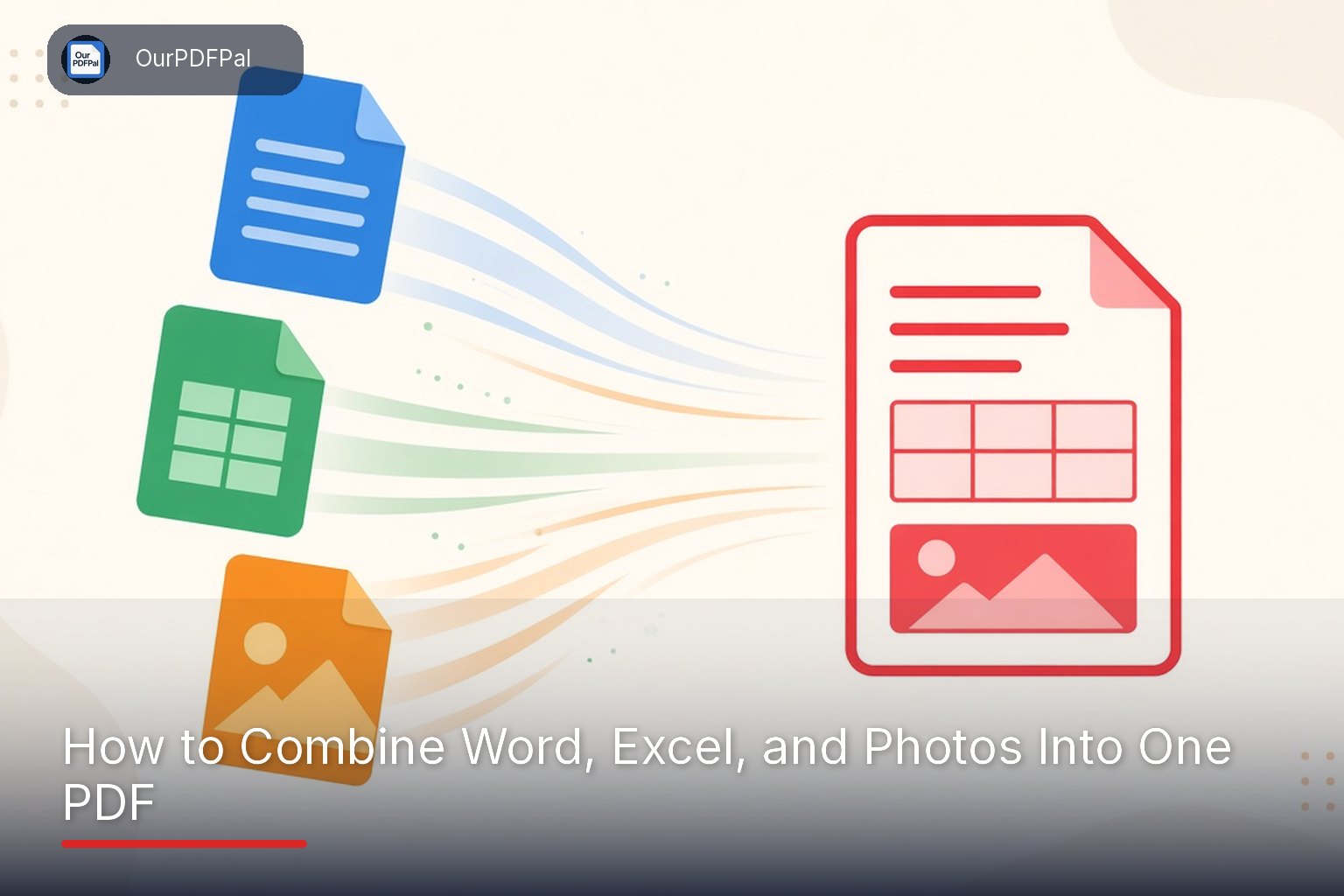
Application packets rarely arrive as a single type of file. You might have a cover letter in Word, a budget or grade list in Excel, and photos of certificates or an ID. Most portals still want one PDF. The reliable method is to convert each piece to PDF first, then merge those PDFs in the order the recipient specified.
OurPDFPal does not mash a .docx, an .xlsx, and a folder of photos together in one step, and that is a good thing. Converting separately lets you preview the letter, fix clipped spreadsheet columns, and rotate a sideways certificate before anything is joined.
Collect the parts and decide the order
Write down the sequence the organization asked for. A common pattern is cover letter, form or spreadsheet, then supporting images. If no order was given, put the document a reviewer should see first at the front and the supporting evidence after it.
Check that you have the final version of each piece. Merging an old letter with a new spreadsheet is a classic way to submit conflicting dates. Rename the source files temporarily if it helps, such as 1-letter.docx, 2-budget.xlsx, 3-id-front.jpg.
Convert the Word file
Set the page size in Word (A4 or Letter) so it matches the rest of the packet. See A4 vs Letter if you are choosing for an international reader. Upload the document to Word to PDF. The tool accepts Word files up to 50 MB (.doc, .docx, and also .rtf and .odt). Open the downloaded PDF and check headings, bullets, and any signature line.
If the letter still lives only in Google Docs, download a PDF directly from Docs as shown in how to save a Google Doc as a PDF. That path does not use one of your website conversions.
Convert the spreadsheet
Spreadsheets cause more layout surprises than letters. Before you convert, open print preview in Excel or Google Sheets and make sure the columns you care about sit on the page. Then use Excel to PDF (up to 50 MB, .xls or .xlsx). If columns are still cut off, follow how to convert Excel to PDF without cutting off columns. A budget that hides the last two columns is worse than sending an extra landscape page.
Convert the photos
Use JPG to PDF for JPG, PNG, or WEBP images (up to 30 per batch, 80 MB total). Drag them into order, pick the same page size as the letter when you can, and download a single PDF of the images. iPhone HEIC photos need a compatible export first; see how to convert iPhone photos to PDF.
If the “photos” are actually pages from another PDF, do not screenshot them. Keep those pages as PDF and add them at the merge step, or extract just the pages you need with Split PDF.
Merge everything into one file
- Open Merge PDF.
- Upload the PDFs you just created, up to 30 files and 80 MB each.
- Drag them into the packet order, or leave Keep upload order selected if you uploaded them already sorted. You can also sort by name or by size.
- Optionally keep Create a bookmark per file, which helps a reviewer jump from “letter” to “budget.” The tool uses your filenames as those bookmark titles, so rename the PDFs first if you want clean labels.
- Download the combined PDF and scroll it from start to finish.
Merging joins pages; it does not rewrite page numbers. If both the letter and the spreadsheet say “Page 1,” those labels will still say that after the merge. That is normal. There is more detail in how to merge several PDFs.
Plan against the daily conversion limit
Each conversion and the final merge counts toward the website’s 5 free conversions a day. A typical packet uses one conversion for Word, one for Excel, one for the photo batch, and one for the merge. That leaves a spare conversion to fix a mistake. If you compress the finished file as well, that is a fifth conversion, so preview carefully before you start so you are not stuck waiting for the daily reset.
The Android app is available if you need more conversions the same day. Temporary uploads are deleted after about 15 to 20 minutes, so save intermediate PDFs until the destination confirms the upload. It is much faster to replace one source file and merge again than to recreate every conversion from scratch.
Final checks before you upload or email the packet
- The first page is the one you intended to show first.
- No file appears twice and nothing important was left out.
- Sideways pages have been rotated with Rotate PDF.
- The file size fits the destination. Personal Gmail accounts allow attachments up to 25 MB. Many portals allow less. Compress with Compress PDF (up to 120 MB) or see what to do when a portal says your PDF is too large.
- You are not including identity pages that were never requested.
Add slides or extra PDFs the same way
If the packet also includes a short slide summary, convert it with PowerPoint to PDF (up to 80 MB) and drop that file into the merge list. Treat any other finished PDF — a downloaded certificate, a signed page, a saved webpage — as another item to merge rather than something you need to photograph.
Frequently asked questions
Can I upload Word, Excel, and photos to Merge PDF at the same time?
No. Merge PDF combines existing PDFs. Convert the Word file, the spreadsheet, and the photos to PDF first, then merge those PDFs.
What order should the files go in?
Use the order the recipient requested. If they did not specify one, put the cover letter or summary first and the supporting photos or tables afterward.
Why do page numbers restart in the middle of my packet?
Each original file kept its own page labels. Merging does not renumber them. Update page numbers in the source documents before you convert if consistent numbering matters.
The combined file is too large to upload. What should I try?
Compress the merged PDF, or compress the image-heavy part before you merge. Split out pages that were not requested. Re-exporting a text document is usually smaller than including extra high-resolution photos.
Liked this? Explore more tools like PDF to Word, Compress PDF, and Merge PDF.