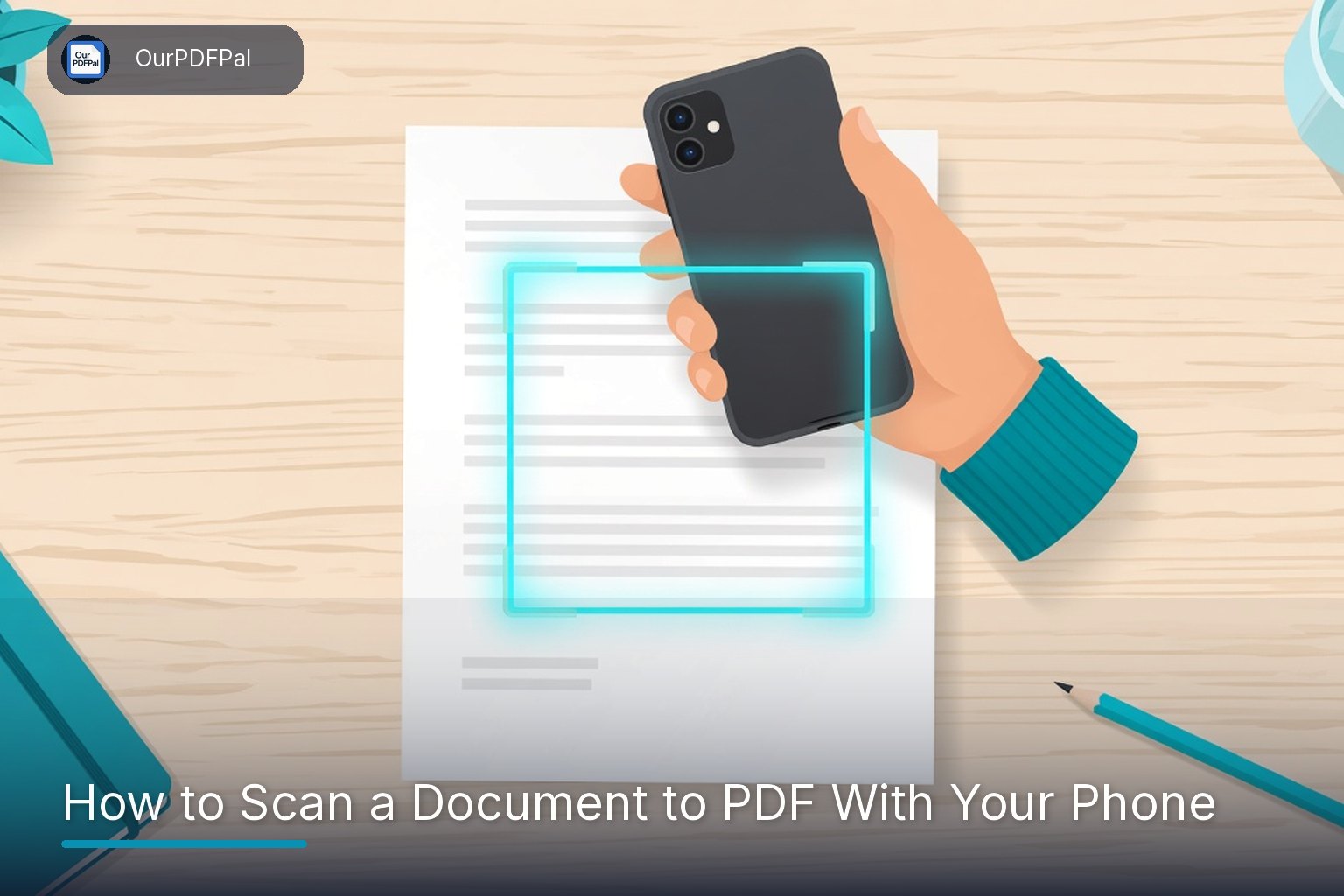
You do not need a flatbed scanner to scan a document to PDF. A phone camera, decent light, and a converter will handle most everyday pages: signed letters, homework, receipts, and forms. The quality of the photo matters more than the brand of the phone.
On the website, the path is: photograph each page, then combine the images with JPG to PDF. The website does not include a live camera scanner. The OurPDFPal Android app does — Scan to PDF, with automatic crop — which is often faster when you are standing over a stack of paper.
Set up the page before you pick up the phone
Place the paper on a darker, uncluttered surface so the edges are easy to see. Smooth folds. A crease down a signature line is difficult to read later. Use even light. Daylight near a window works well. Avoid a bright lamp that puts a hot spot in the middle of the page, and avoid a window behind the paper that turns the text into a silhouette.
Hold the phone directly above the page, not at a steep angle. Angled shots distort lines and make tables look trapezoid-shaped. Fill the frame with the document. Extra table, floor, or fingers waste resolution and file size.
If a page is printed on both sides, photograph each side as its own image. If a form is larger than your desk, take one straight shot of the whole page rather than several overlapping close-ups, unless the text is too small to read in a full-page shot. In that case, take a full-page overview plus a close-up of the hard-to-read section and keep those images next to each other when you order the pages.
Capture the pages
Turn off an aggressive beauty or HDR filter if it is washing out printed text. Tap to focus on the text, then take the photo. Check the shot immediately. If a corner is cut off or a shadow hides a line, retake it now. Work through the stack in order so you do not have to reconstruct the sequence later.
The built-in camera is enough. On Android, the OurPDFPal app's Scan to PDF option can detect the page edge and crop it. After the scan you can choose A4, Letter, or a page that fits the scan. That cropping step is the main advantage over a casual camera-roll photo.
Turn the photos into a PDF
If the photos are HEIC, convert them to JPG or PNG first, or use the Android app. Details are in how to convert iPhone photos to PDF.
- Open JPG to PDF.
- Upload the images (JPG, PNG, or WEBP; up to 30 files and 80 MB total).
- Drag them into the original page order.
- Choose A4 or Letter unless you have a reason to fit the page to the photo.
- Press Create PDF, download the file, and open it on a larger screen if you can.
Save the download before you close the tab. Uploaded files are deleted after about 15 to 20 minutes.
What “good enough” looks like
A usable scan is not a studio photograph. It is a file another person can read without guessing:
- Every edge of the paper is visible, or a clean crop has removed the background without cutting off text.
- Letters are sharp, not smeared by motion.
- A signature is clearly a signature, not a dark blob.
- No thumb covers a clause or a total.
- Pages are upright. Fix mistakes with Rotate PDF.
If the PDF will go to a strict upload form, check its size and compress it if needed with Compress PDF. Camera-based PDFs are often larger than files exported from Word.
What a phone scan cannot do by itself
A photo of a page is a picture of text, not selectable text. You usually cannot highlight a sentence in the PDF or search for a name unless software performs OCR (optical character recognition). The OurPDFPal website does not include OCR. The Android app does: Image to Text, PDF to Text, and Searchable PDF. Use those only when you need searchable or copyable text, and proofread anything important, because recognition can misread names and numbers.
A scan also does not notarize or legally alter a document. It makes a copy. Keep the paper original when an organization still requires it.
Laminated cards, books, and multi-sheet forms
Laminated ID cards and glossy certificates reflect overhead lights. Move the card, not only the lamp, until the text is clear, and take a second shot of any line that still flares. For a bound booklet, press the page as flat as you can and accept that the inner margin may curve; a second close-up of the inner column is better than a single warped overview if those words matter.
Number the photos as you go if the form is long, or lay the finished stack in order on the table so you can recapture a missing page without guesswork. Name the final file with the form title and the date you signed it, not only “scan.pdf,” so you can find it when a clerk asks for it weeks later.
Frequently asked questions
What is the easiest way to scan a document to PDF with a phone?
Photograph each page straight-on in good light, then combine the images with JPG to PDF. On Android, the OurPDFPal Scan to PDF tool can crop the page automatically.
Why are my scanned pages so dark or shiny?
The light is uneven or bouncing off the paper. Move near a window, avoid a lamp pointed straight at glossy paper, and retake the shot rather than trying to repair a glare later.
Can I scan several pages into one file?
Yes. Capture each page as its own photo, upload them together, and drag them into order. The website accepts up to 30 images in one conversion.
Will the scanned PDF be searchable?
Not automatically. A camera scan is an image of the page. The website does not add OCR. The Android app can create searchable text, which you should proofread before you rely on it.
Liked this? Explore more tools like PDF to Word, Compress PDF, and Merge PDF.